
WordPress Errors, Ranked by How Much They Should Scare You
Most WordPress errors look worse than they are. A few are genuinely serious. Knowing the difference is the gap between a five-minute fix and three days of lost revenue.
WordPress runs approximately 41% of all websites on the internet, which means its error messages are the most-seen technical problems in the history of the web.
That scale has a silver lining: almost every error you will ever encounter has been diagnosed, documented, and fixed by someone before you. The trick is knowing which category your problem falls into.
This breakdown organizes the most common WordPress errors by how urgently they demand your attention, what actually causes them, and whether a non-technical owner can self-resolve or needs a developer.
The most common WordPress errors fall into four categories: server configuration errors (500 Internal Server Error, White Screen of Death), database errors (Error Establishing a Database Connection), routing errors (404 Not Found, login redirect loops), and performance errors (PHP memory exhausted, Core Web Vitals failures). Most have a single, identifiable root cause. A corrupted .htaccess file causes roughly half of all 500 errors. A wrong database credential in wp-config.php is the most common database connection failure. Flushing permalinks from Settings > Permalinks resolves most 404 errors after a site migration or plugin install.
The Diagnostic First Step That Most Guides Skip
Before you try to fix anything, you need to know what WordPress is actually telling you. By default, WordPress hides its error details from site visitors, which means the blank white screen or generic “critical error” message you see is the public-facing version of a more specific internal message.
The right first move is to enable debug mode. Add three lines to your wp-config.php file, the configuration file that sits in your site’s root directory:
Copy
define( ‘WP_DEBUG’, true );
define( ‘WP_DEBUG_LOG’, true );
define( ‘WP_DEBUG_DISPLAY’, false );
With those three lines active, WordPress will log every error, warning, and notice to a file at wp-content/debug.log, without showing errors on the live page. You can read that log file via FTP or your hosting file manager. The WordPress debugging documentation walks through each constant in detail. Turn WP_DEBUG off again when you are done, and never leave it on in a production environment.
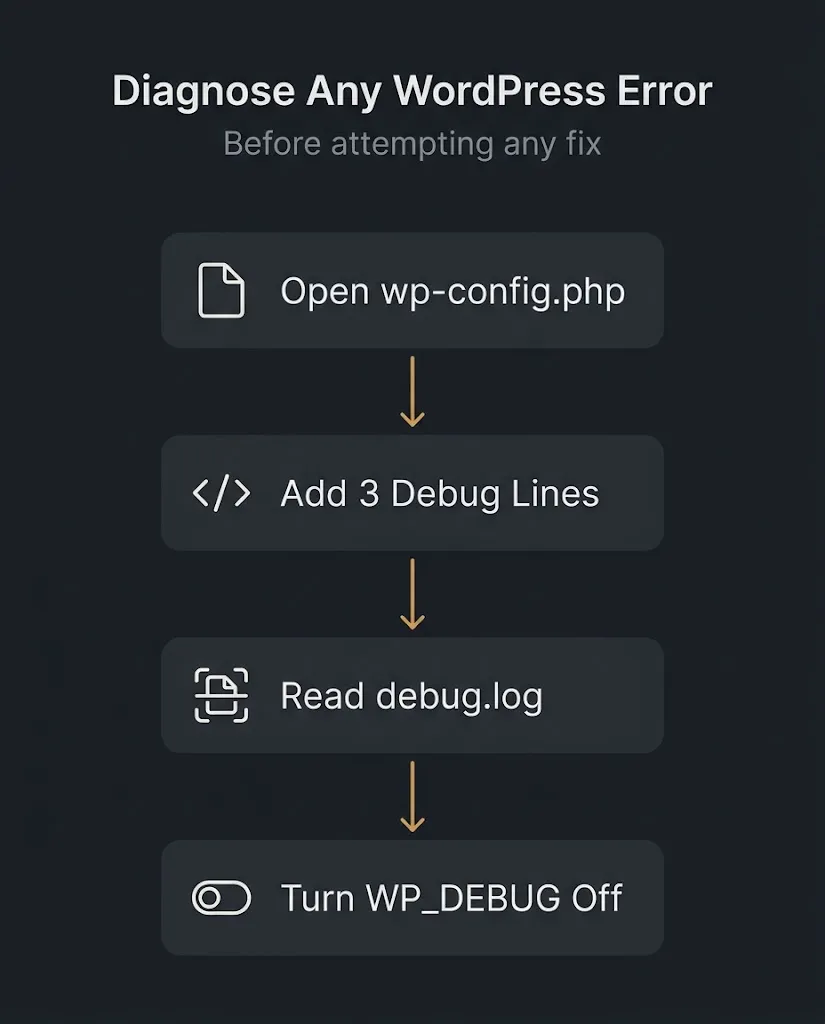
What the log file shows you will tell you exactly which plugin, theme, or configuration is responsible for the problem.
Tier 1: These Should Scare You
These errors mean your site is either completely down or actively losing visitors. Priority is measured in minutes, not hours.
The White Screen of Death
The White Screen of Death (WSOD) is a completely blank browser window with no error message. It is caused by a PHP fatal error that kills the page before WordPress can render anything, including its own error page.
The most common causes, in order of frequency, are: a plugin that conflicts with your PHP version or with another plugin, a theme with a fatal syntax error, and a PHP memory limit that has been hit mid-execution. To diagnose it, enable WP_DEBUG as described above, then check debug.log. The log will name the exact file and line number responsible.
If you cannot access your WordPress admin at all, connect to your site via FTP and rename the wp-content/plugins folder to plugins_old. This deactivates every plugin at the file system level without touching the database. If the site loads, you have a plugin conflict. Rename the folder back to plugins, then deactivate plugins one by one from the admin dashboard until you find the culprit. If renaming plugins does not help, rename the active theme folder inside wp-content/themes. WordPress will fall back to its default theme, which isolates theme-level PHP errors.
The WordPress Advanced Administration handbook’s common errors page documents the full WSOD resolution path, including the manual FTP method for cases where you have no dashboard access.
500 Internal Server Error
This is the web server telling you that something went wrong on its end, without specifying what. In WordPress, three things cause the vast majority of 500 errors: a corrupted or misconfigured .htaccess file, a PHP memory limit being exceeded, and a plugin or theme conflict triggering a fatal PHP error.
Start with .htaccess. Connect via FTP, rename .htaccess to .htaccess_old, and try loading the site. If it loads, go to Settings > Permalinks and click Save Changes. WordPress will regenerate a clean .htaccess file. This single step resolves roughly half of all WordPress 500 errors.
If renaming .htaccess does not help, check your PHP memory limit. Your hosting control panel will show what your account’s limit is. The WordPress recommended minimum is 256MB for general sites. For WooCommerce stores, 256MB is a floor, not a ceiling. If you are on shared hosting with a fixed limit, you will need to ask your host to raise it or move to a plan that allows more.
Error Establishing a Database Connection
This error means WordPress cannot connect to its MySQL database. Your site is completely down and search engines will begin logging the failure if it persists beyond a few hours.
The most common cause is incorrect credentials in wp-config.php: the database name, username, password, or host has changed or was entered incorrectly. Open wp-config.php via FTP and check those four values against what your hosting control panel shows for the database. They must match exactly, including capitalization.
If the credentials are correct, the issue is either on the database server itself (the MySQL service is down, or your database has hit its storage quota) or the site has been compromised and the wp-config.php file has been modified. If you suspect compromise, scan the site immediately. A database connection error that appears suddenly on a site that was working is a red flag worth taking seriously, particularly given that Patchstack recorded 11,334 new WordPress ecosystem vulnerabilities in 2025 alone, a 42% increase over 2024.
Tier 2: These Will Damage You Slowly If You Ignore Them
These errors do not take your site entirely offline, but they create compounding problems over days or weeks.
404 Not Found (The Permalink Problem)
A 404 error means the URL a user or search engine requested does not exist or cannot be found. A single 404 on a deleted page is normal and expected. A site-wide 404 after a migration, a WordPress update, or a permalink structure change is a different problem entirely.
The most common fix takes thirty seconds: go to Settings > Permalinks and click Save Changes without changing anything. This flushes and rebuilds WordPress’s rewrite rules. If the 404s persist after flushing, the issue is usually that Apache’s mod_rewrite module is not enabled on the server, or the .htaccess file does not contain the correct rewrite block. Your hosting provider can confirm whether mod_rewrite is active.
From an SEO perspective, a 404 that sits on a URL that previously had inbound links or search traffic causes ranking loss that compounds over time. Google will eventually deindex the URL and redistribute or drop whatever authority pointed to it. If you have migrated a site and URLs have changed structure, 301 redirects from the old URLs to the new ones are not optional.
PHP Memory Exhausted
“Fatal error: Allowed memory size of X bytes exhausted” means a script running on your page requested more memory than WordPress’s configured limit allows. This often shows up after installing a resource-heavy plugin, running a large WooCommerce import, or after a hosting provider reduces your account’s available RAM.
The fix is to add or edit this line in wp-config.php, placing it before the “stop editing” comment:
Copy
define( ‘WP_MEMORY_LIMIT’, ‘256M’ );
If that does not hold or your host’s server limit is lower than 256MB, your hosting plan is the constraint, not WordPress. Shared hosting plans frequently cap PHP memory at 64MB or 128MB. Moving to a managed WordPress host or a VPS with configurable PHP settings is a more durable solution than fighting the limit repeatedly.
Stuck in Maintenance Mode
After a plugin or WordPress core update, you may see: “Briefly unavailable for scheduled maintenance. Check back in a minute.” If this message persists for more than a few minutes, the update did not complete and WordPress left a .maintenance file in the site root.
The fix is to connect via FTP, find the .maintenance file in the root directory (it may be hidden, so enable “show hidden files” in your FTP client), and delete it. The site will return to normal immediately. This is a low-severity error in terms of impact, but it is alarming to encounter if you do not know what caused it. It almost always follows an interrupted update: a server timeout, a network drop, or a plugin that conflicts with the updater.
Login Redirect Loop
You enter your credentials at wp-login.php, the page refreshes, and you are back at the login screen. No error message. No dashboard.
This happens most often when the site URL values in the WordPress database do not match the URL you are actually using, when cookies are blocked or corrupted, or when a caching plugin is serving a cached version of the login page. The fastest first step is to clear your browser cookies for the site domain and try again. If that does not work, disable your caching plugin by renaming its folder via FTP. If access returns, reconfigure the cache to exclude wp-admin and wp-login.php from caching, which it should already be doing.
If neither step works, you likely have a URL mismatch. Access your database via phpMyAdmin (available in most hosting control panels), open the wp_options table, and check the siteurl and home values. Both should match the URL you are using to access the site.
Tier 3: These Are Performance Errors, and They Are Costing You in Search
This is the category that gets the least attention in most WordPress error guides, because the site technically loads. It just loads badly.
Core Web Vitals Failures (LCP, INP, CLS)
Google’s Core Web Vitals are measured scoring signals. According to Google’s own definitions, a good user experience requires Largest Contentful Paint (LCP) under 2.5 seconds, Interaction to Next Paint (INP) under 200 milliseconds, and Cumulative Layout Shift (CLS) under 0.1. Pages that fail these thresholds receive a ranking penalty relative to pages that pass them at the 75th percentile of real user sessions.
In WordPress, LCP failures are most commonly caused by a large unoptimized hero image being loaded without any size attributes, render-blocking CSS or JavaScript injected by plugins, or slow server response times from cheap shared hosting. INP failures often trace to heavy JavaScript from page builders, chat widgets, or third-party tracking scripts that block the main thread. CLS failures frequently come from images loaded without defined width and height attributes, or from ad units and embeds that shift content after the page renders.
None of these are “errors” in the traditional sense. Your site loads. But they represent a real and measurable drag on search performance. Google Search Console’s Core Web Vitals report shows you which URLs are failing and at what percentile. Start there before attempting any optimization.
A bloated WordPress install with fifteen active plugins, two conflicting caching configurations, and a 4MB hero image is not a secure, maintainable site. It is a site that looks fine in the dashboard and costs you ranking positions in the background.
Mixed Content / HTTPS Errors
After migrating from HTTP to HTTPS, you may see a browser warning that the connection is “not fully secure” even though your SSL certificate is valid. This means some assets on the page (images, scripts, stylesheets) are still being called via HTTP URLs. The browser blocks or flags them, and the padlock icon breaks.
The fix has two components. First, run a search-and-replace across your database to update HTTP references to HTTPS. The Better Search Replace plugin handles this safely. Second, add an HTTP to HTTPS redirect in .htaccess so that all traffic is forced to the secure version. After making both changes, clear your cache and verify with a tool like Why No Padlock (whynopadlock.com) that no mixed content remains.
When to Fix It Yourself vs. Hire a Developer
| Error Type | Typical Self-Fix Time | When to Call a Developer |
| Stuck maintenance mode | 2 to 5 minutes | If it recurs repeatedly |
| 404 after permalink flush | 5 to 10 minutes | If .htaccess or mod_rewrite is the cause |
| PHP memory exhausted | 5 to 15 minutes | If host limit is the ceiling |
| Login redirect loop | 10 to 20 minutes | If DB URL mismatch requires manual editing |
| 500 Internal Server Error | 15 to 30 minutes | If .htaccess fix does not resolve it |
| White Screen of Death | 30 to 60 minutes | If debug.log points to custom code |
| Database connection error | 15 to 45 minutes | If credentials are correct and site still fails |
| Core Web Vitals failures | Multiple sessions | Always: this is architecture-level work |
| Mixed content | 20 to 40 minutes | If URLs are hardcoded in theme files |
The rule we use when scoping work: if the fix is reversible, the instructions are clear, and the worst-case scenario is a blank screen you can undo via FTP, attempt it yourself.
If the fix requires editing PHP functions, restructuring database tables, or modifying server configuration files, the risk of compounding the problem outweighs the cost of a developer hour.
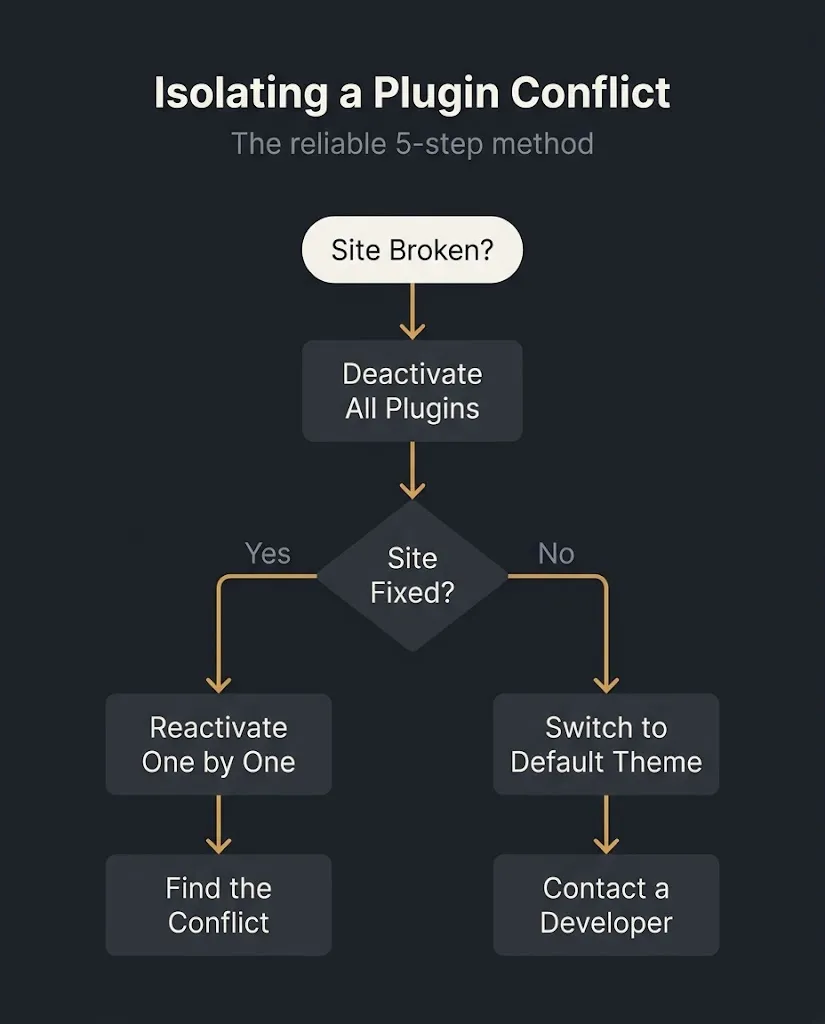
Plugin Conflicts: The Root Cause Behind Half of Everything Above
Plugin conflicts are the single most common root cause across all WordPress error categories. A plugin that worked fine last week may break after an update to itself, another plugin, or WordPress core. The issue is not that plugins are bad. The issue is that WordPress allows any PHP code to run in any order, which means two plugins can both try to modify the same function and produce unexpected results.
The isolation method is always the same: deactivate everything, verify the error is gone, then reactivate plugins one at a time, checking after each activation. It is tedious. It is also reliable. If deactivating all plugins does not resolve the error, the problem is in the theme or in WordPress core itself.
Patchstack’s 2025 research makes the plugin risk concrete: 91% of all WordPress ecosystem vulnerabilities were found in plugins, not in WordPress core. Plugin updates are not optional maintenance. They are your primary security surface. A site running a plugin that has not been updated in eighteen months is a site with an unknown number of unpatched vulnerabilities.
WooCommerce-Specific Errors
WooCommerce adds a second layer of complexity because payment processing, inventory management, and cart sessions all run through WordPress’s PHP environment. The most common WooCommerce errors are:
Checkout 500 errors typically trace to a payment gateway plugin that conflicts with another plugin modifying the checkout AJAX request. Isolate by temporarily switching to a default WooCommerce payment method.
Empty cart after checkout is usually a session cookie conflict, often introduced by a caching plugin that is incorrectly caching the cart page. Add /cart/, /checkout/, and /my-account/ to your caching plugin’s exclusion list.
Order confirmation emails not sending means WordPress’s built-in wp_mail() function is failing. This is almost always a hosting configuration issue where the server’s mail function is disabled. Install an SMTP plugin and configure it with a transactional email service such as Postmark or SendGrid.
The Error You Are Not Seeing
The errors above are the ones that announce themselves. There is a category of problem that does not: the slow degradation of a site that was well-built two years ago and has accumulated updates, new plugins, and growing content without any structural maintenance.
PHP memory creep, increasing LCP scores, growing database overhead from undeleted post revisions and transients, and plugins that were installed for a specific project and never removed are all invisible. They do not produce error messages. They produce a site that loads in 4.8 seconds instead of 1.8, that loses search positions gradually, and that finally breaks in a way that surprises everyone when what it actually did was accumulate until something gave way.
The preventive framework is straightforward: run a performance audit in Google Search Console and PageSpeed Insights every 90 days, keep all plugins and themes updated, maintain a staging environment where updates can be tested before being pushed to production, and keep a backup that is recent enough to actually be useful, meaning daily or weekly depending on your content update frequency.
Our team spans Bangladesh and the US, which means when a client sends feedback or flags a problem at the end of a US business day, it is often actioned before the next morning. That kind of revision cycle compression matters when a WooCommerce checkout error is sitting live during business hours.
FAQ
What is the first thing I should do when WordPress shows an error?
Enable WP_DEBUG mode in wp-config.php and read the debug.log file. The generic error message a visitor sees is not the actual error. WordPress logs the specific PHP error, filename, and line number internally. Reading that log takes ninety seconds and tells you exactly what is broken, which saves you from guessing through a twenty-step troubleshooting list. Turn debug mode off after you have diagnosed the problem.
How do I know if my WordPress site has been hacked versus having a configuration error?
A database connection error that appears suddenly on a previously working site, a plugin folder that contains files you did not install, admin accounts you do not recognize, or outbound links appearing in your content that you did not write are all signs of a compromised site rather than a configuration error. Configuration errors tend to appear immediately after a change (an update, a plugin install, a setting modification). Hacks tend to appear without any corresponding action on your part, or manifest as search rankings suddenly dropping rather than as visible error pages.
Can I fix a WordPress 500 error without FTP access?
Sometimes. If you have access to your WordPress admin dashboard, you can deactivate plugins from the Plugins screen, switch themes from Appearance > Themes, and reset permalinks from Settings > Permalinks. If the admin is inaccessible, you need FTP or file manager access through your hosting control panel. There is no reliable way to diagnose a 500 error without being able to access or modify server files in some way.
How much should I expect to pay a developer to fix a WordPress error?
For a single, isolated error like a 500 caused by a plugin conflict or a database connection issue from a credential mismatch, a competent WordPress developer should resolve it in one to two hours. At US market rates, that is roughly $100 to $250 for a freelancer and $200 to $400 from an agency, depending on their minimum billing increment. Errors that require database repair, malware cleanup, or Core Web Vitals work are scoped separately and can range from $500 to several thousand dollars depending on the depth of the problem. Ask for a diagnosis before committing to a fixed price. Any developer who quotes a cleanup without looking at the debug log first is guessing.
Will a plugin conflict always show an obvious error message?
No. A plugin conflict can manifest as a subtle performance regression, a layout shift on mobile, a broken checkout step, or a missing element on a specific page template without ever producing a visible error. This is why the standard isolation method (deactivate all plugins, reactivate one at a time) is the reliable diagnostic even when the symptom is not an obvious error page.
What is the best way to prevent WordPress errors long-term?
Three practices account for the majority of preventable errors: maintaining a staging environment where updates are tested before going live, keeping all plugins and themes updated (including ones you are not actively using, which should be deleted rather than left deactivated), and running a weekly automated backup to an off-server destination. Hosting on a managed WordPress host with PHP 8.1 or newer, adequate memory allocation, and automatic backup retention removes the infrastructure variables that cause most server-level errors.
If your site threw an error that you could not diagnose, or if you have resolved it but want to know how much underlying fragility your install is carrying, request a WordPress site audit from BetaTech. We will look at your plugin stack, Core Web Vitals scores, PHP configuration, and error logs, and give you a plain-language assessment of what is stable, what is at risk, and what needs to be addressed. No upsell. No obligation.